


Knowverse Help Manual
A comprehensive guide to using Knowverse, our AI-powered analytics platform.
1Landing Page
After signing in, you will land on this page. Click on Private Assistant to start getting insights.
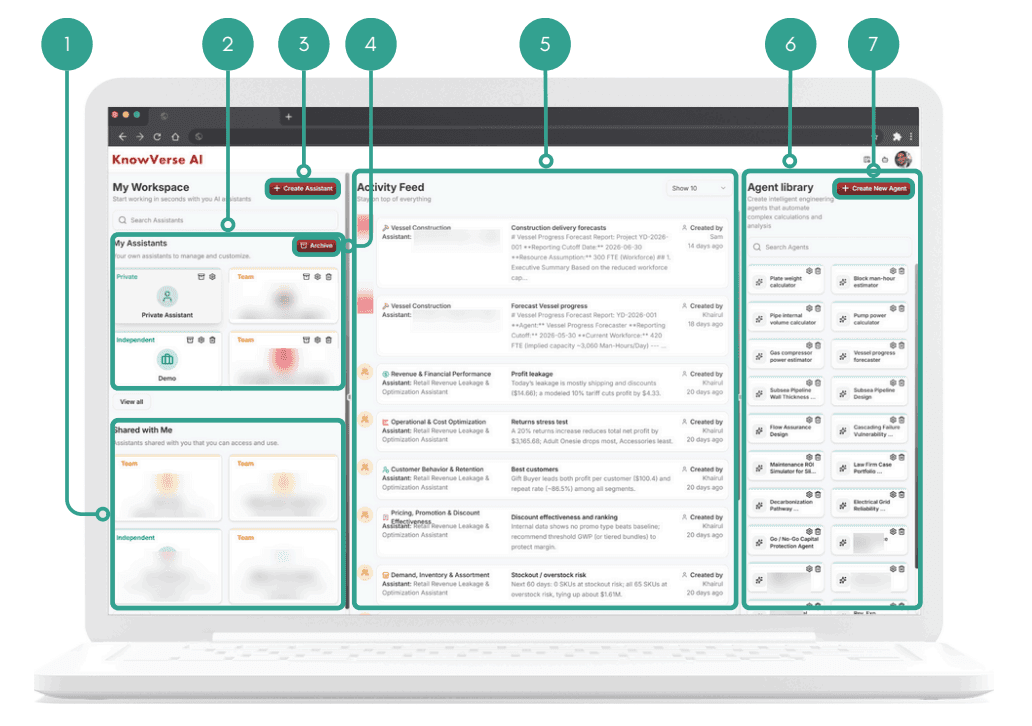
1. Shared Assistants List
Displays shared assistants categorized by type and access.
2. My Workspace & Assistants Panel
Lists assistants created by you for quick access and management.
3. Create Assistant
Create a new AI assistant workspace for a specific task or purpose.
4. Assistant Management Controls
Archive, manage, and organize existing assistants you own or collaborate on.
5. Activity Feed
Shows recent actions, updates, and insights generated across all assistants.
6. Agent Library
Browse available AI agents created by you.
7. Create New Agent
Create a custom AI agent to perform specialized tasks or workflows.
2Private Assistant Page
After landing in private assistant (turn the internal search off), type your query to get answers like chatgpt. Drop a pdf and csv file to get answer with analytics.
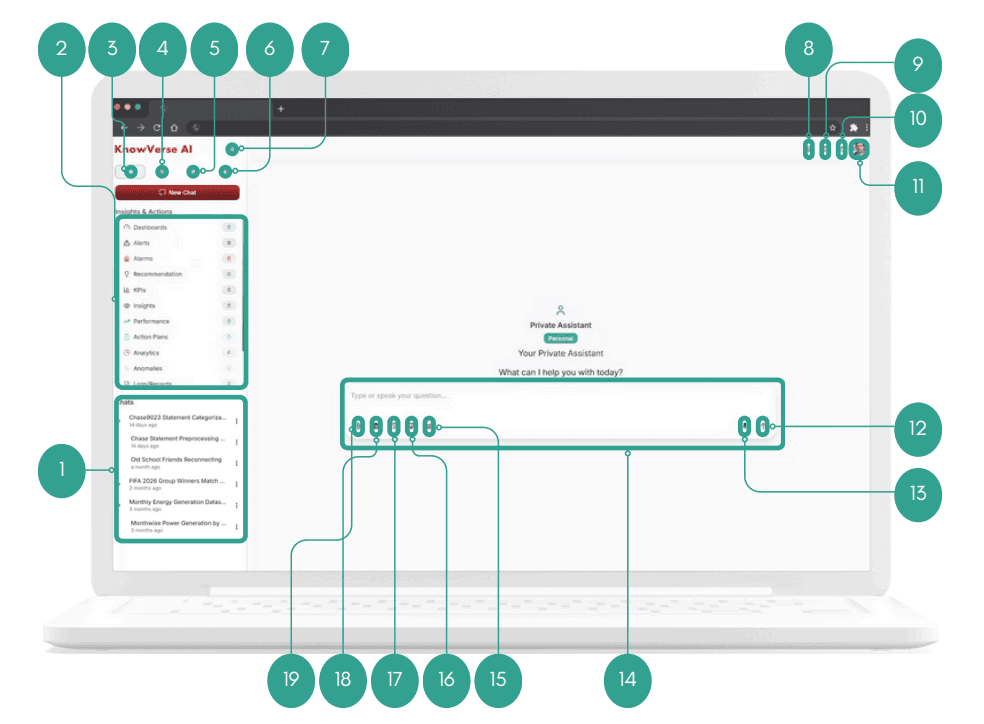
1. Chats History
Shows previous conversations to revisit, continue, or review past discussions.
2. Insights & Actions Navigation
Access saved insights and categorized actions generated by the assistant.
3. Insights & Actions Tab
Shows Insights & Actions section.
4. Documents
Displays all documents list.
5. Photos & Videos
Shows uploaded photos and videos.
6. Data List
Shows all tabular data list.
7. Hide Button
Hide/unhide insights and actions section
8. Assistant Settings
Return to assistant configuration
9. LLM Settings
Change LLM model and define word limit for responses
10. Assistant Page
Return to workspace containing all work assistants
11. Account Settings
Access user profile to change its settings.
12. Send Prompt
Submit your typed question or command to the assistant.
13. Voice Input
Ask questions using voice input instead of typing.
14. Chat Input Area
Type or speak your questions to interact with the assistant.
15. Realtime Dashboard Tool
Generate real-time dashboards from data.
16. Presentation Tool
Convert responses into presentation-ready visuals and charts.
17. Internal Search Tool
Search uploaded documents and internal knowledge sources.
18. Web Search Tool
Search the web to enhance answers with external information.
19. Add Files
Upload files directly into the conversation context.
3How to Read the Response
- •Responses appear in designated areas.
- •Scroll to view a summary, source, and related code.
- •Options are available to download, copy, or email the response.
- •Save as an insight by selecting a category and adding a title.
- •A chat summary of each query is on the right side of the panel.
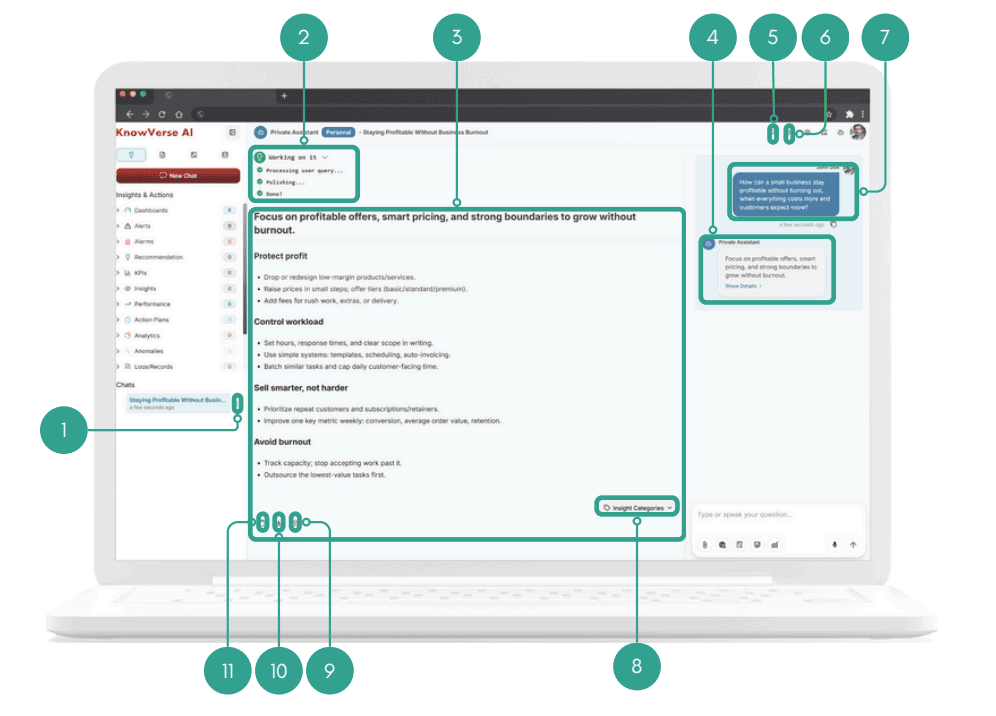
1. Chat Title Options
Edit chat title or delete the chat entirely.
2. Operation Status Panel
Shows real-time progress of query processing and response generation.
3. Query Response Content
Displays the full AI-generated answer to the user's question.
4. Assistant Response Summary
Provides a short, summarized version of the assistant's response.
5. Text To Speech
Plays the assistant response aloud using text-to-speech.
6. View Full History
View complete conversation between user and assistant.
7. User Query
Shows the question asked by the user in the conversation.
8. Insight Categories Selector
Tag responses into insight categories for future quick access.
9. Copy Response
Copy the assistant's response content to clipboard.
10. Download Response
Download the response as PDF for offline use or sharing.
11. Share Response
Send the response directly as email to anyone.